


Losing a Word file can be frustrating, especially if it contains your hours of work. If you ever find your Word document missing from your Windows PC, don’t lose hope. Whether the file is lost due to accidental deletion, sudden system crash, or any software issue, there are several free data recovery methods available to restore your deleted Word files on Windows.
Modern versions of Windows and Microsoft Word offer built-in recovery features that can help you restore lost documents. In this article, we’ll explore different methods to recover deleted Word documents on Windows and reduce the risk of losing important work in the future.
Why Do Word Files Get Deleted on Windows?
Understanding the exact reason for the deletion of Word documents on your Windows PC helps you find the exact recovery workaround. Some main reasons why Word files are erased include:
Accidental Deletion
One of the most common reasons is accidental deletion by the user. A file may be unintentionally removed by pressing Shift + Delete, which permanently deletes the document and bypasses the Recycle Bin, making it harder to recover.
Emptying the Recycle Bin
Every deleted file on Windows goes to the Recycle Bin folder and remains there until permanently erased. However, if the Recycle Bin is emptied, the files stored there are removed from the system view.
System Crash or Power Failure
Unexpected system crashes or sudden power outages can cause Word documents to disappear. If a document was open or being edited at the time of the crash and had not been saved properly, the file might be lost or corrupted.
Virus or Malware Attacks
Malicious programs like viruses or malware, when infects your Windows computer, corrupt or delete all stored files – including Word documents. In some cases, malware may even encrypt files, making them inaccessible until the threat is removed.
Formatting the Drive
Formatting a drive or partition erases all the data stored on it, including Word documents. This may happen intentionally when reinstalling Windows or accidentally when selecting the wrong drive during formatting.
Quick Methods to Recover Deleted Word Files on Windows
Irrespective of the above reasons, there are several methods available to recover deleted Word documents on your PC. Let’s explore these methods in detail:
Method 01: Check the Recycle Bin
The first and simplest way to recover a Word document on Windows PC is by checking the Recycle Bin folder. Whenever you delete a file on your PC using the Delete key or by right-clicking and selecting Delete, it is moved to the Recycle Bin and remains there until permanently erased.
You can follow the below steps to recover deleted Word files from the Recycle Bin:
- Double-click the Recycle Bin icon on the desktop.
- Browse through deleted files and locate the Word document you want to recover.
- Right-click on that file and select Restore.
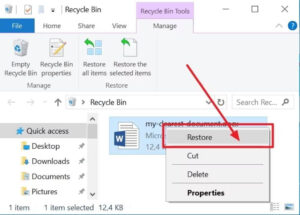
The file will return to its original location before deletion. If you remember the document name or file type, you can use the search box inside the Recycle Bin to quickly locate it.
Method 02: Recover from AutoRecover Files in Microsoft Word
Microsoft Word offers an in-built AutoRecover feature that automatically saves temporary copies of your document while you work. This is very helpful if your device crashes or closes unexpectedly. If you’ve enabled this option on your Windows PC, follow the below steps to recover AutoRecovered files:
- Launch Microsoft Word, go to File > Info.
- Now, click on Manage Document and then select Recover Unsaved Documents.
- From the folder containing unsaved Word files that appear on your screen, select the files with the .asd extension.
- Open the file you want and immediately click Save As to store it safely.
Method 03: Recover from Temporary Files
Word sometimes creates temporary backup files that may remain on your system after a crash or accidental closure. You can browse temporary file locations like “%systemdrive%\Windows\Temp” or “%userprofile%\AppData\Local\Temp” to find your missing files. To search for temporary files:
- Launch File Explorer.
- Now, type any of the following in the search bar:
- *.tmp
- *.asd
- *.wbk
- Press Enter and scroll through the search results.
- Once you have found the required Word file, open it in Microsoft Word and save it under a new name.
Method 04: Restore from Previous Versions
Windows includes a feature called Previous Versions that allows you to restore older versions of files or folders. This feature works if File History or System Restore is enabled.
To recover using Previous Versions:
- Firstly, right-click the folder where the Word file was originally saved.
- Select Restore previous versions and choose the backup version from the list.
- Click Restore to save the selected version to your device.
This restores the folder to a previous state, potentially bringing back deleted files.
Recover Deleted Word Files Using Windows Data Recovery Software
If the above built-in methods fail to provide you with the desired result, try third-party free data recovery software such as Stellar Data Recovery Free to restore them. These tools scan your storage media, such as memory cards, hard drives, USB drives, etc., for deleted files that are still recoverable. The software supports recovery of Word files deleted due to accidental deletion, system failures, virus or malware attacks, and many other reasons.
The Stellar Data Recovery Free software allows you to recover deleted files up to 1 GB for free. If you need to recover larger amounts of data, you can upgrade to one of the premium versions for extended recovery capabilities. The software can recover your deleted files in three simple steps, i.e., Select, Scan, and Recover.
Here are the detailed steps to recover deleted Word files on Windows using this free data recovery software:
Step 1: Download and install the Stellar Data Recovery Free software on your Windows PC. Launch the software and from the homepage, select Office Documents (as you need to restore Word files) and click Next.
Step 2: Now select the location where your deleted Word file was earlier stored and click Scan to initiate the scanning process.
Step 3: Once the scan is complete, preview the recoverable files and click Recover to restore the Word files to your PC.
Wrapping Up
Data loss on your Windows PC, either intentional or accidental, can sometimes put you in trouble. If you ever find your important Word files deleted, go with the above-mentioned free data recovery methods to get them back. If you’ve backup, data recovery can be easy and simple. Without backups, you can use third-party Windows data recovery software, such as Stellar Data Recovery Free, to restore them with ease.
By enabling backup features and saving work regularly, users can significantly reduce the risk of losing important files in the future.
FAQs – Recover Deleted Word Files on Windows
How can I recover a deleted Word document on Windows?
Start with simple methods such as checking the Recycle Bin folder. If the file is not there, try Word’s AutoRecover feature, search for temporary files, restore previous versions, or use free data recovery software.
Can I recover a Word document after emptying the Recycle Bin?
Yes, it may still be possible. Even after emptying the Recycle Bin, the file data often remains on the drive until overwritten. You can recover it using free data recovery software such as Stellar Data Recovery Free or Windows File Recovery tools.
How do I recover an unsaved Word document in Windows?
Open Microsoft Word, go to File → Info → Manage Document → Recover Unsaved Documents. You will see a list of unsaved files that you can open and save.